
Startup
To power the unit on, press and hold the power button for 2 seconds. If the unit isn't connected to power, plug in the solar panel or external power supply first. For the location of the power button and the other connectors, see Parts of the Sensorbee Air Pro 2.
The status LED should light solid blue, then start blinking purple — the unit is registering with the cellular network, then contacting the bootstrap server. Once the LED flashes solid green and turns off, the unit is online.
Continue to Setting up cloud service if the unit has not yet been paired, or to Check before deployment if it has.
If the LED doesn't illuminate, there are two likely causes. Either the internal battery isn't connected — see Removing the battery for reconnection — or the battery is depleted and the incoming power isn't sufficient to recharge it. If the unit is solar-powered, confirm the panel has adequate direct sunlight; indoor lamps are not enough.
Typical LED sequence during boot
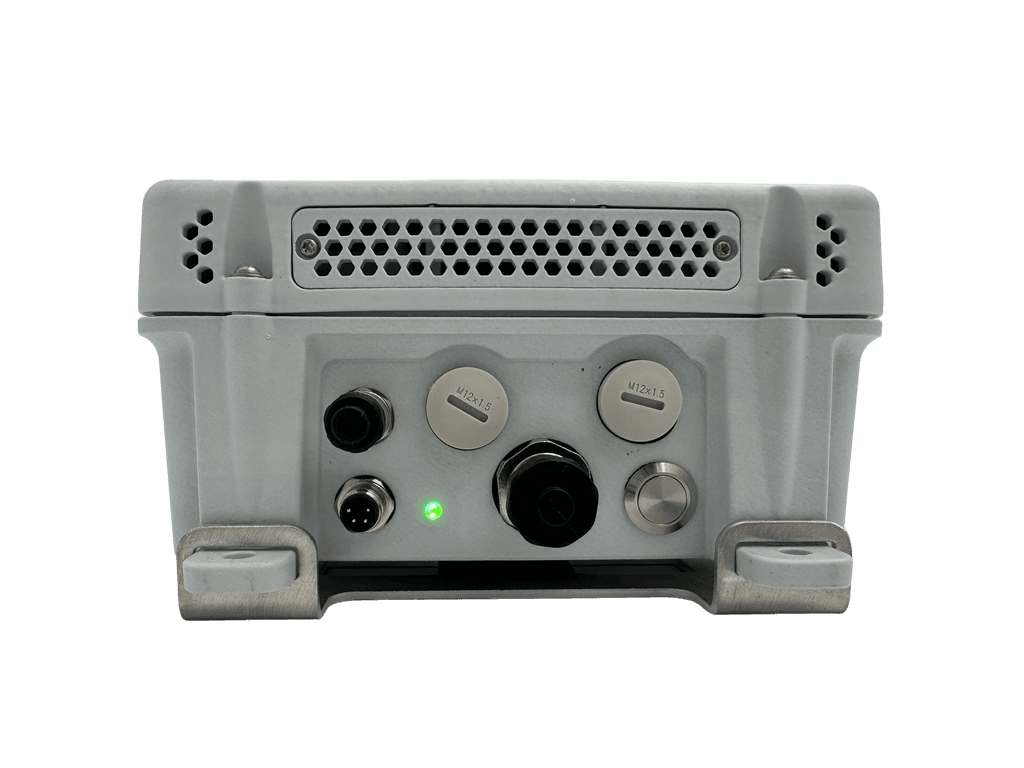
- Solid blue — registering with the network.
- Blinking purple — connecting to the bootstrap server.
- Solid purple — registration with the server complete.
- Solid green (1 second) — online and successfully registered.
- Off — normal idle operation.
First boot takes longer than subsequent boots while the SIM registers with the operator. Moving the unit between countries or networks — or replacing the SIM — extends the next boot too.