
User Management
User Management is where administrators add team members to the account, assign roles, and restrict their access to specific base units and sensors.
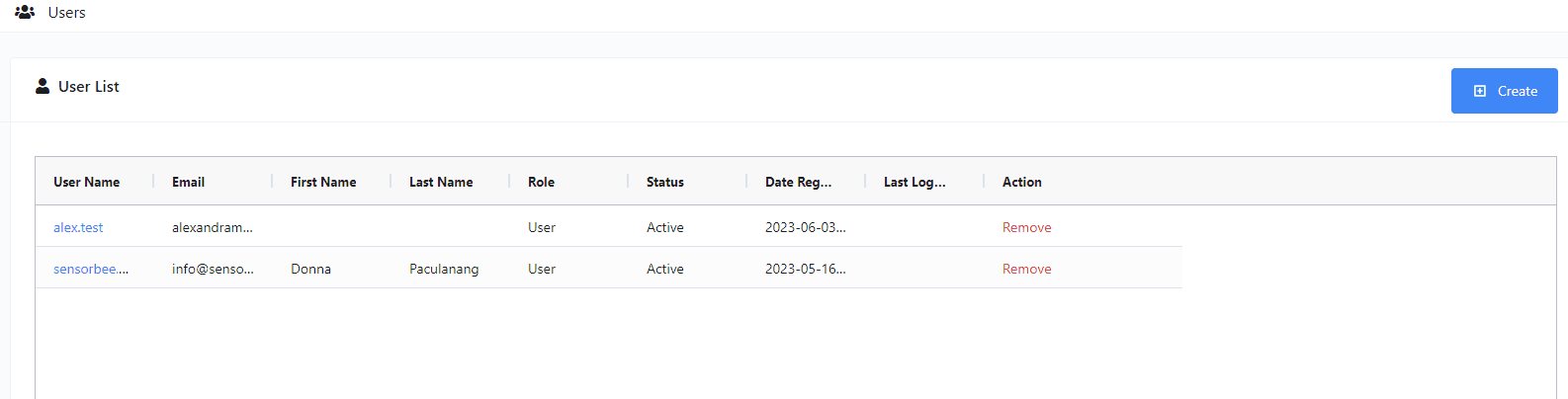
Create a user
Click the + Create button to open the Create User modal. Required fields:
- ·First name
- ·Last name
- ·Username
- ·Role
- ·Timezone
- ·Password
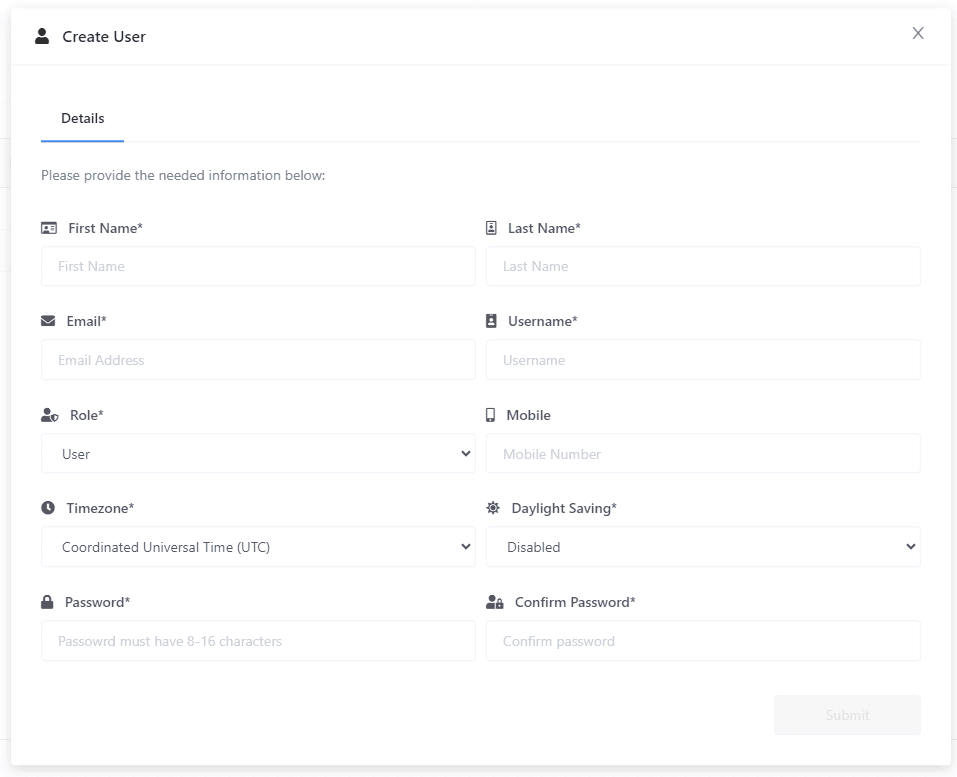
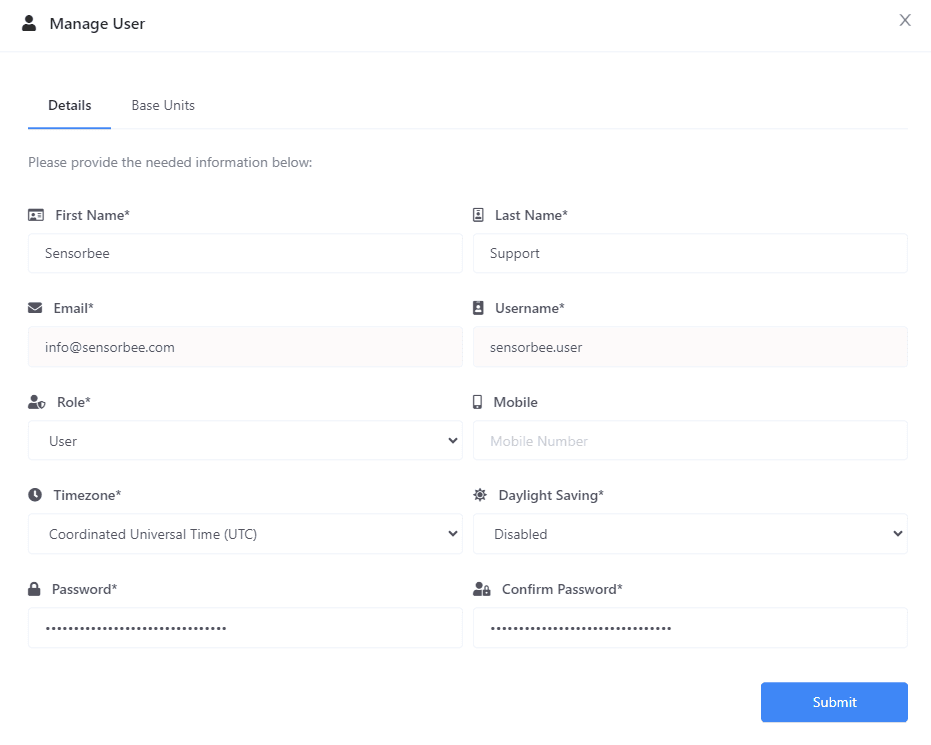
Once submitted, the new user appears in the list. Click the user's name to open the Manage User modal — that's where you assign base units and sensors.
Edit a user
Click the user's name in the list. The Manage User modal opens, pre-filled. Make your changes and submit. The same modal lets you reset the user's password.
Assign / restrict base units
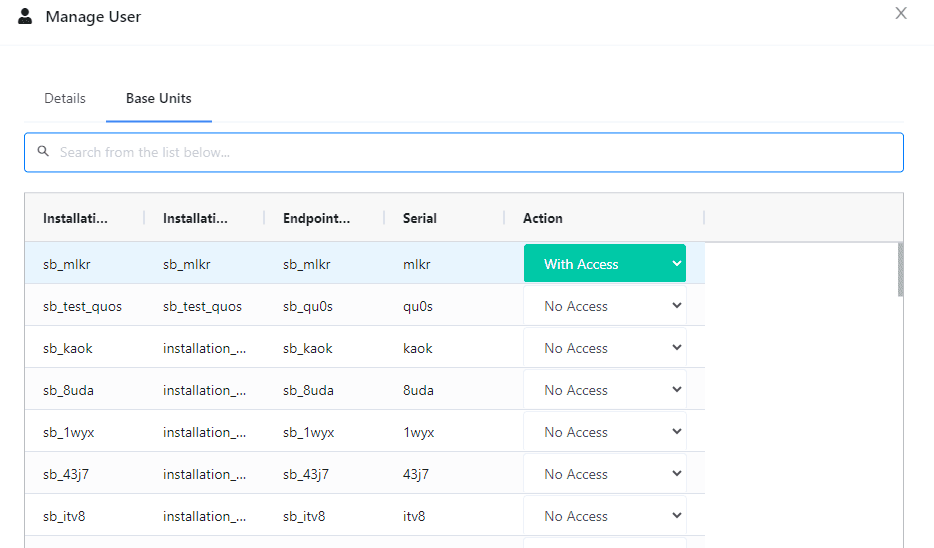
In the Manage User modal, switch to the Base Units tab. Each base unit has an Action column — toggle between No Access and With Access to grant or revoke access.
The Base Units tab is only available after a user has been created — you can't assign base units during creation.
Assign / restrict sensors
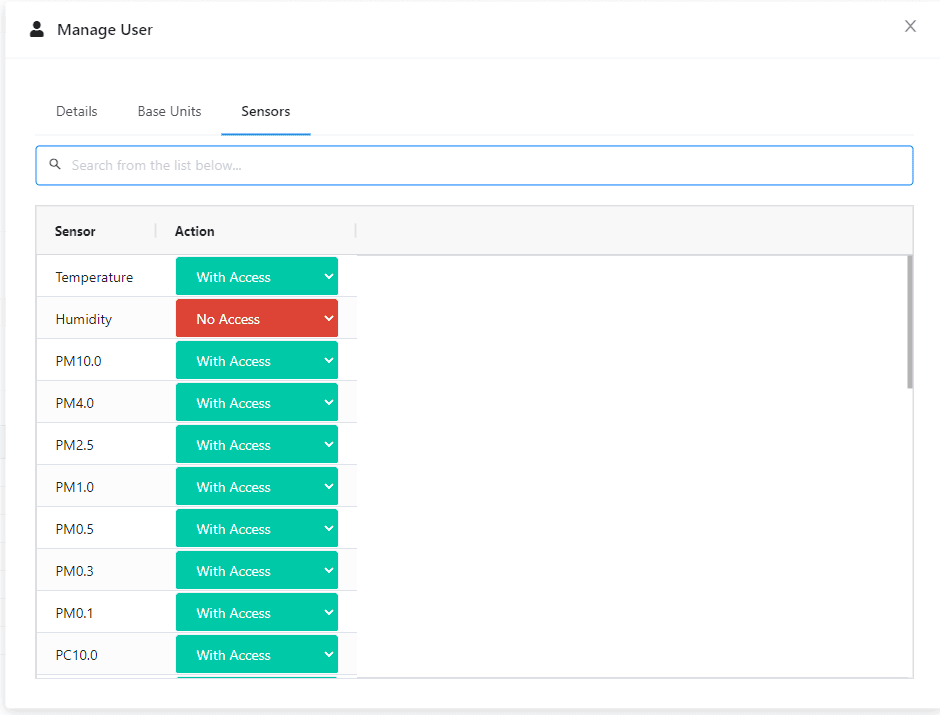
Switch to the Sensors tab to restrict which sensor types a user can see. By default a new user has access to all sensors.
The Sensors tab is only available after the user has been created.
Delete a user
Find the user in the list and click Remove in the Action column. Confirm the action — that's it.