
Upload Reference Data
Before calibrating a Sensorbee sensor against a reference, the reference data has to live in the cloud. This page imports a CSV / XLSX / XLS file from a co-located reference station, maps its columns to the Sensorbee schema, and stores it for use in Calibrate and R² Correlation.
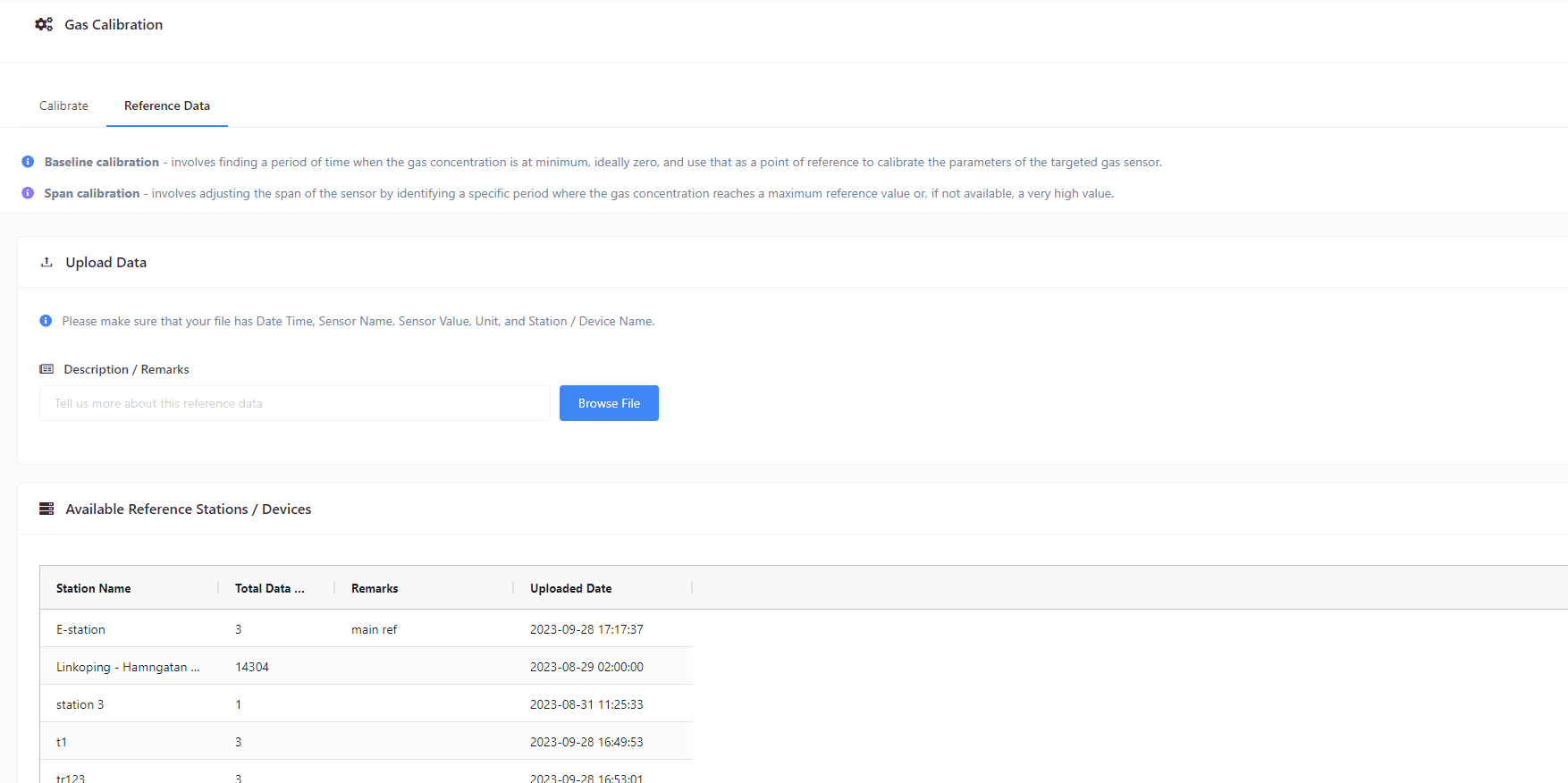
1. Open the Reference Data tab
On the Calibration page, switch to the Reference Data tab.
2. Add optional remarks
Add a description for this dataset (project name, date range, station ID — anything that helps you identify it later). Skip if not needed.
3. Browse for the file
Click Browse File to open the upload modal.
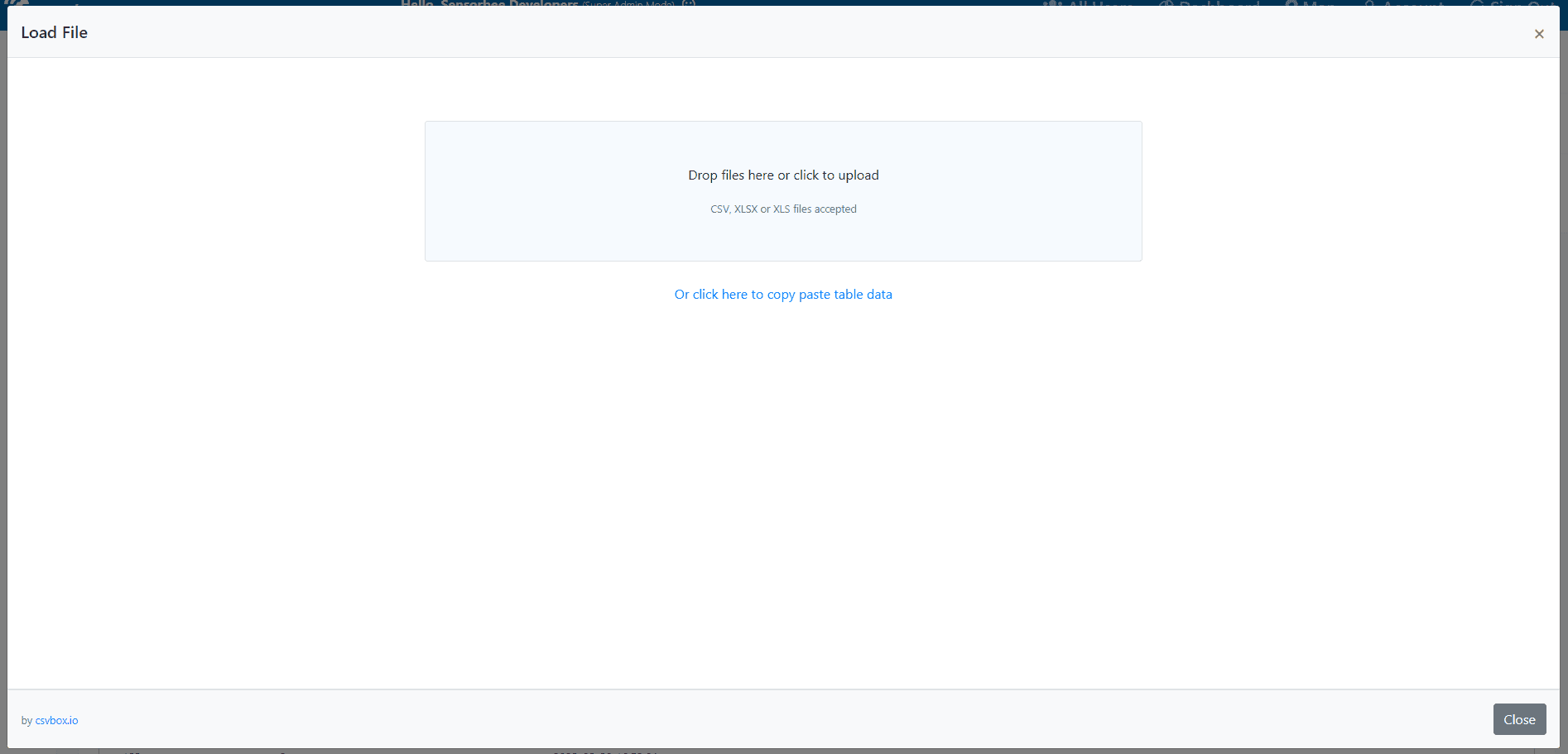
Drag-and-drop the file in, or click to browse.
4. Select the header row
Once the file is uploaded, the modal shows a preview and asks you to pick the header row — the row that contains the column names.
Why this matters: spreadsheets from reference stations often start with metadata rows (instrument serial, station ID, run date) before the actual headers. Picking the right row tells the importer where to start.
In the example below, rows 1 and 2 are metadata; the headers are on row 3.
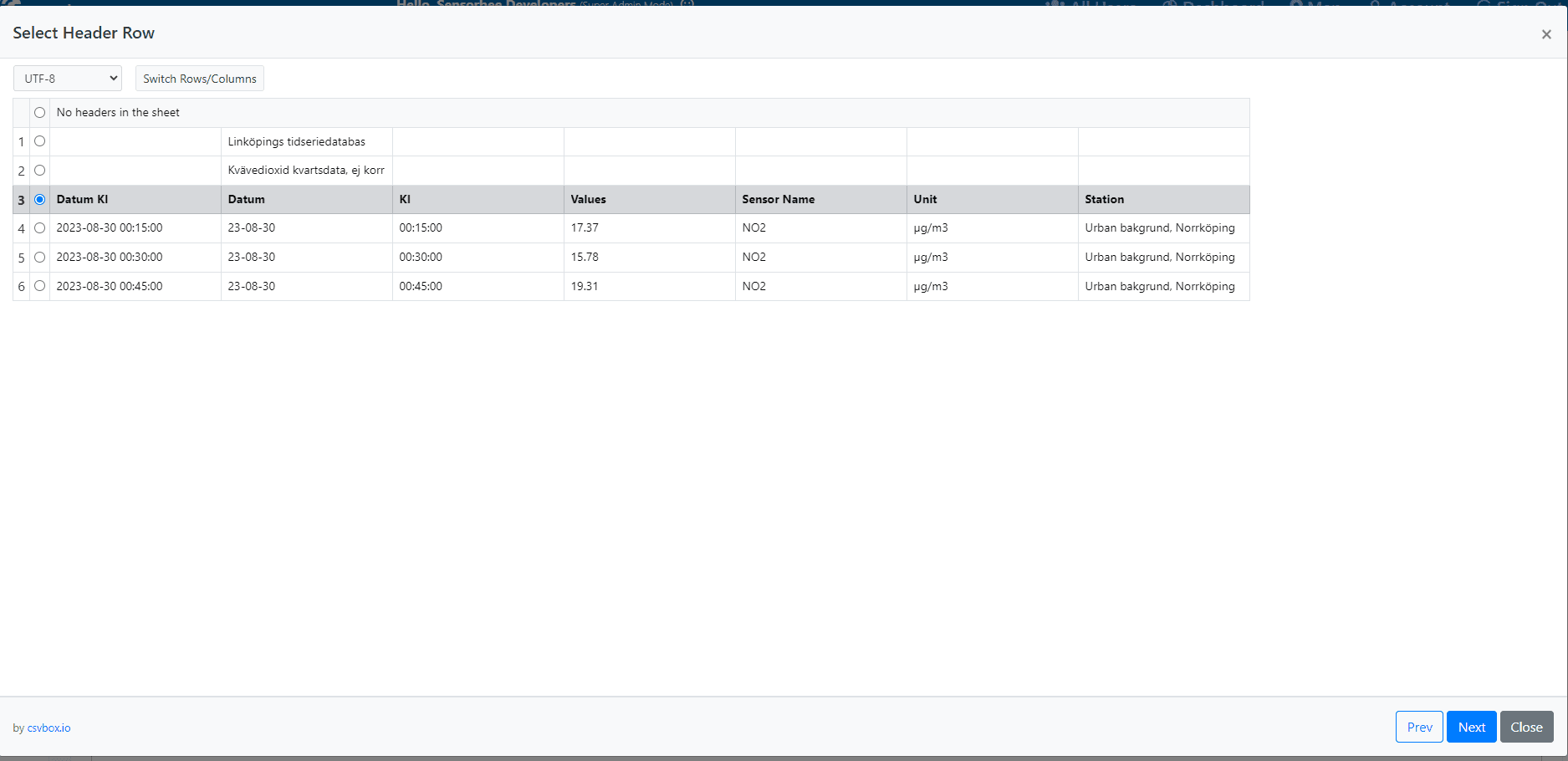
Click Next.
5. Map the columns
Map the columns from your file to the Sensorbee schema. Required fields:
| Field | Description |
|---|---|
| Date & Time | Format: YYYY-MM-DD hh:mm. |
| Sensor Name | One of: NO2, CO2, O3, SO2, PM10, PM2.5. |
| Sensor Values | Numeric reading from the reference instrument. |
| Station | Reference station or device name. |
| Unit | One of: ppb, ppm, µg/m3. |
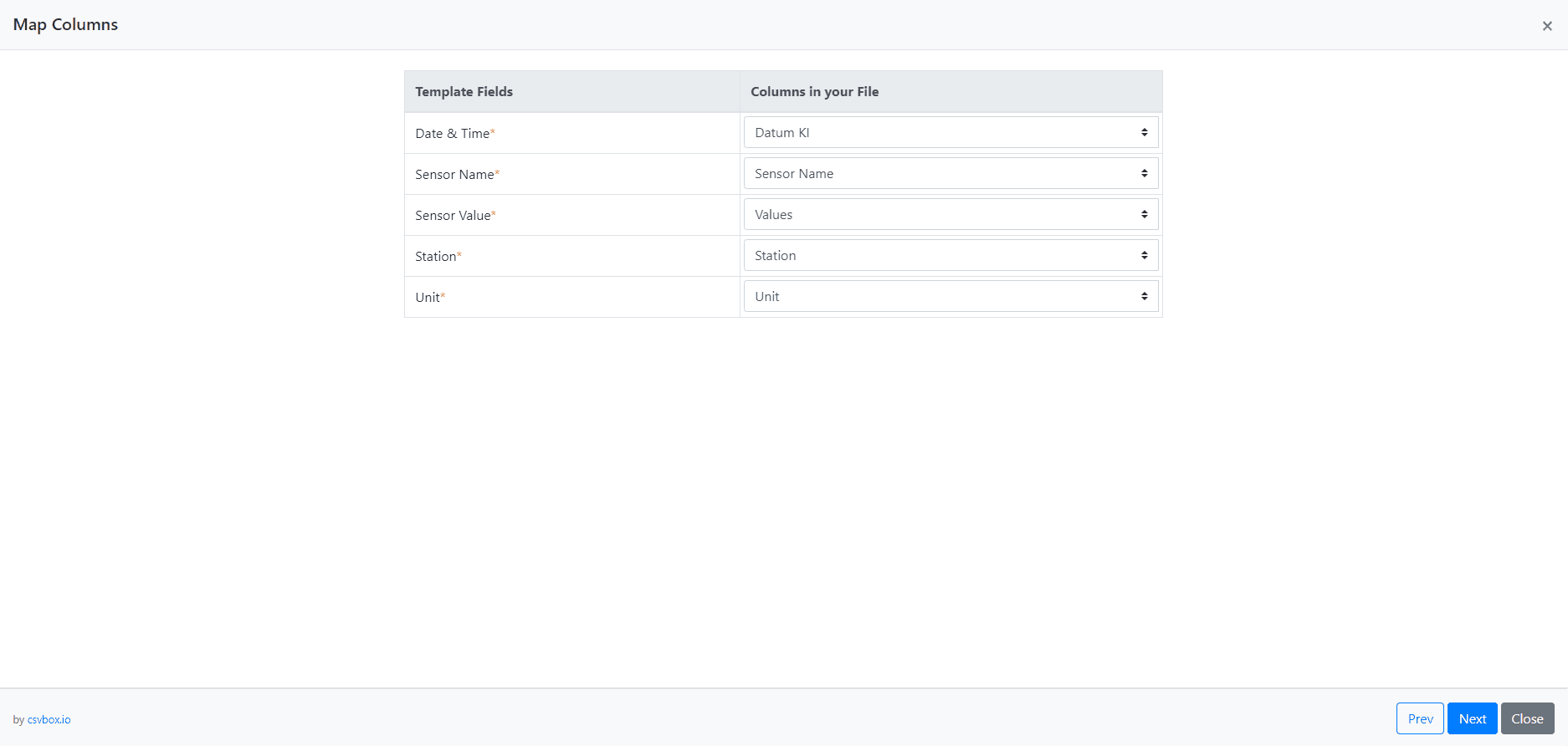
6. Verify
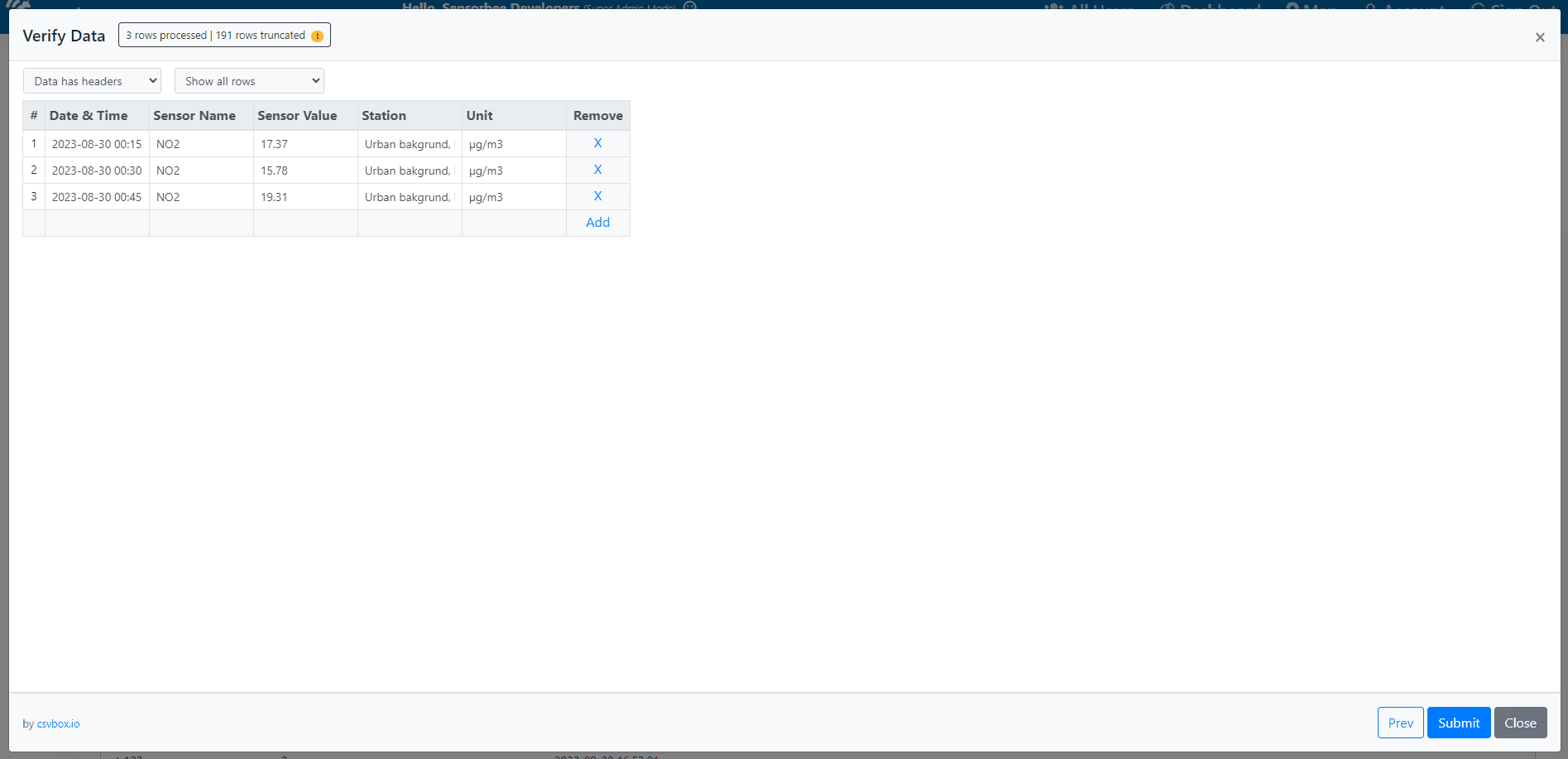
The importer validates the data against the required formats. Format errors are flagged on screen — fix them and re-verify, or click Submit if everything is clean.
7. Wait for processing
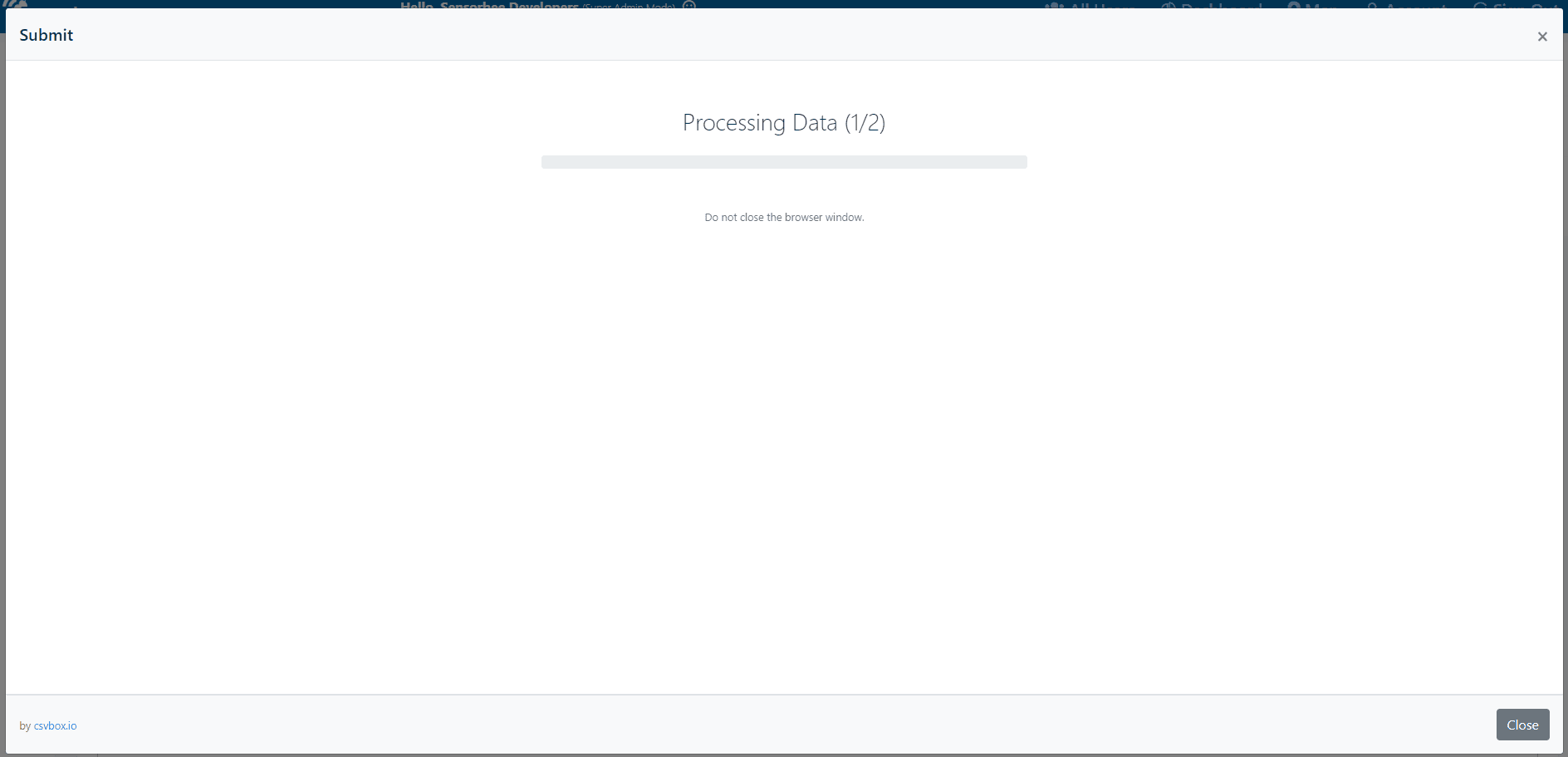
Processing time depends on file size.
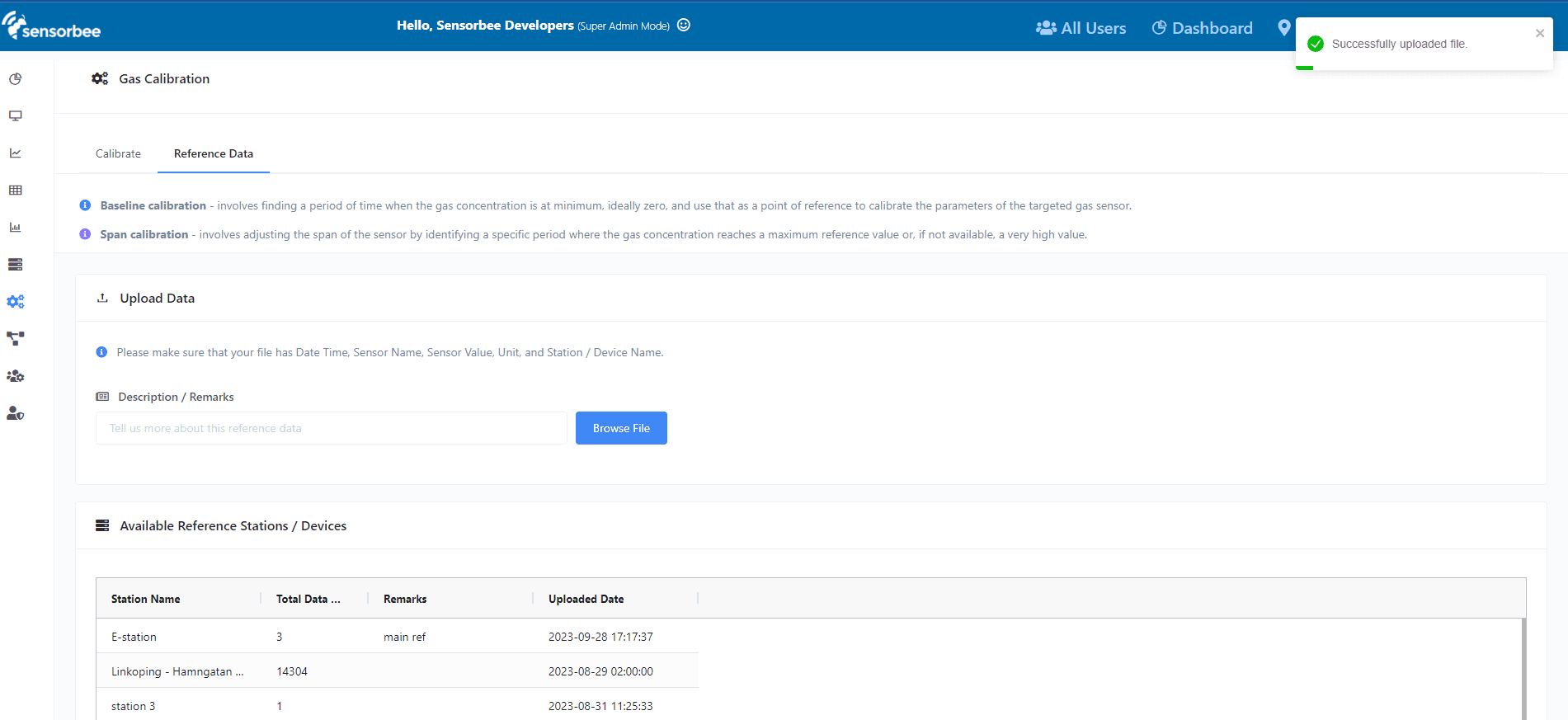
A success message appears once the upload completes.
8. Use the data
The new reference dataset appears in the Available Reference Stations / Devices grid below.
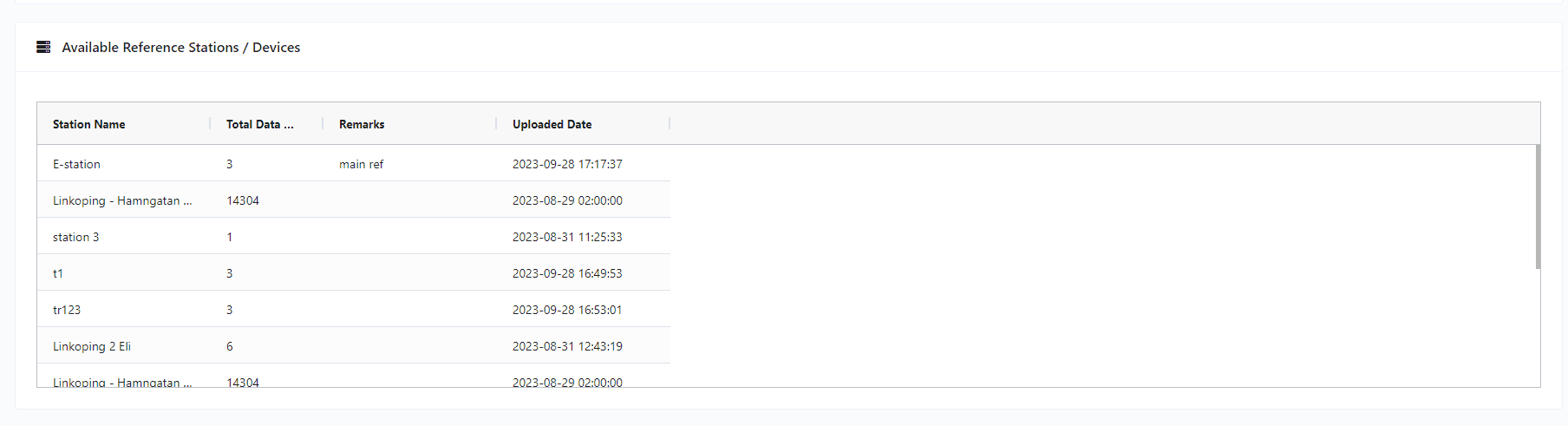
It's now selectable as the reference dataset in the Calibrate and R² Correlation workflows.