
Firmware Update Menu
The firmware update menu applies a .bin firmware file to the Modbus Lite over USB-C using an XMODEM transfer. Contact support@sensorbee.com for the current firmware binary.
Power the unit from a reliable source before starting. Your computer's USB-C port is sufficient for the transfer, but an interrupted update can leave the unit in a failed state.
1. Enter firmware update mode
From the main menu, press 4 to open the firmware update menu. You'll be prompted with Y to enter update mode or N to return to the main menu.
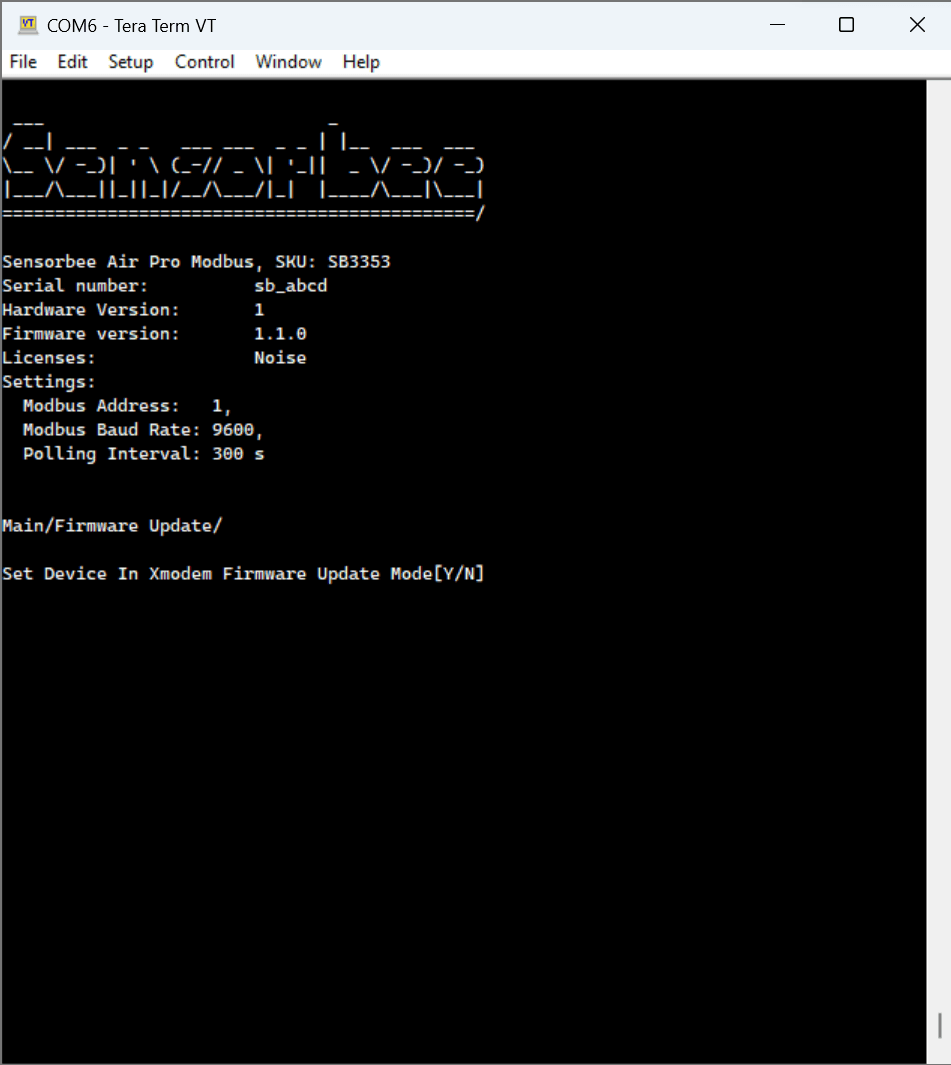
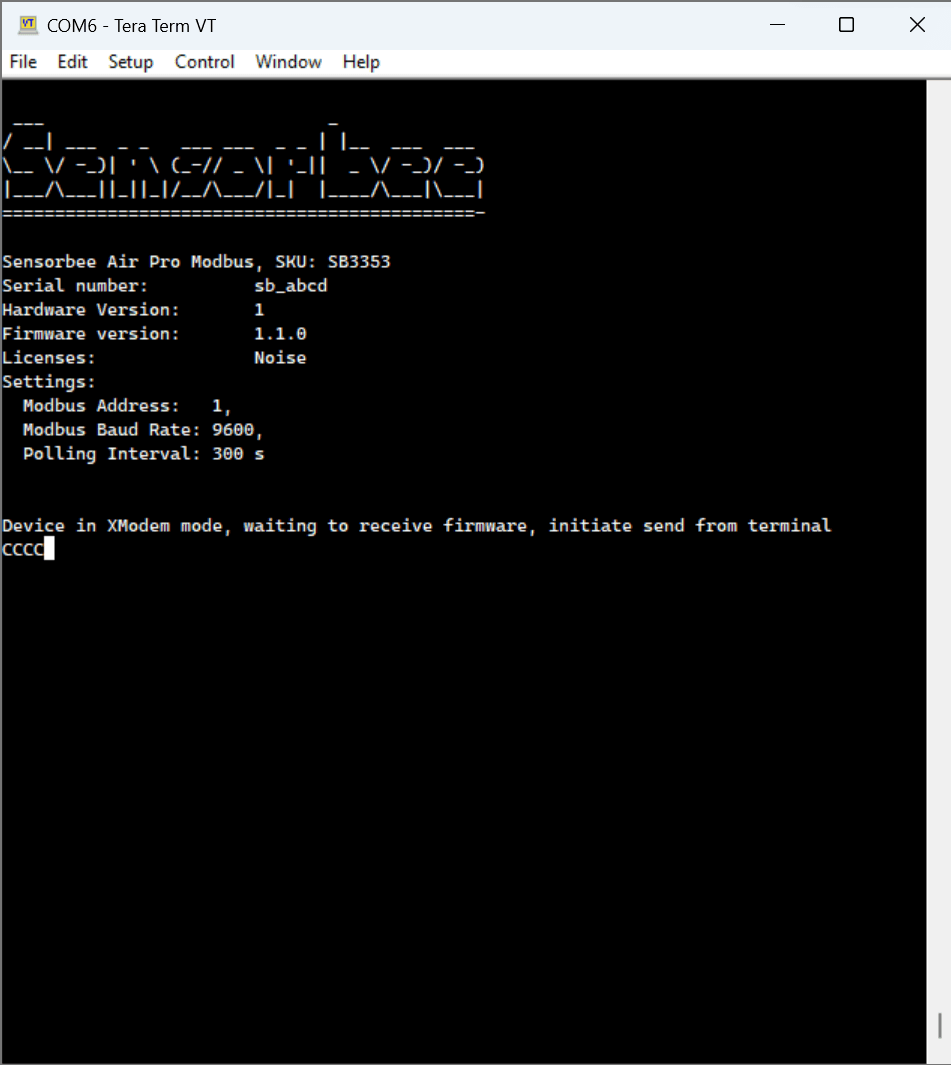
2. Start the XMODEM transfer
Once you confirm with Y, the terminal starts printing a stream of C characters. This is the unit telling your terminal it's ready to receive the firmware file.
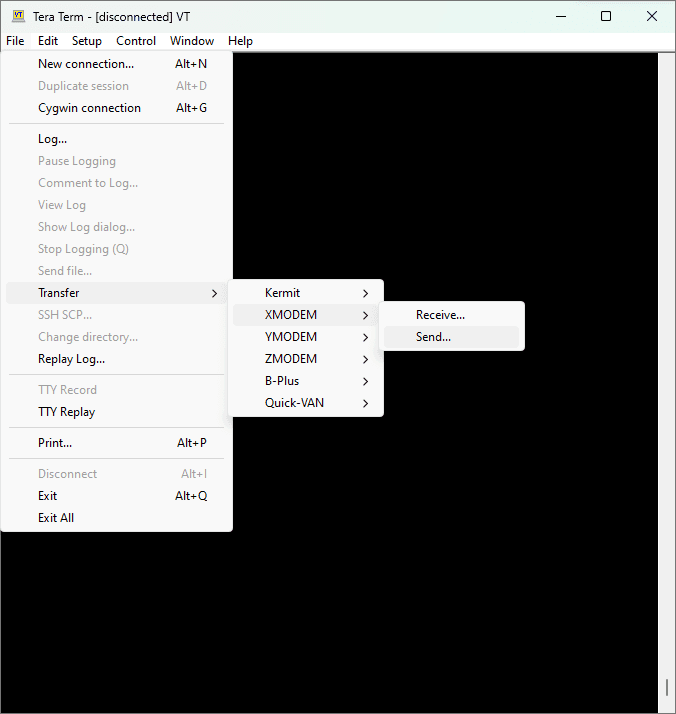
In Tera Term: File → Transfer → XMODEM → Send…
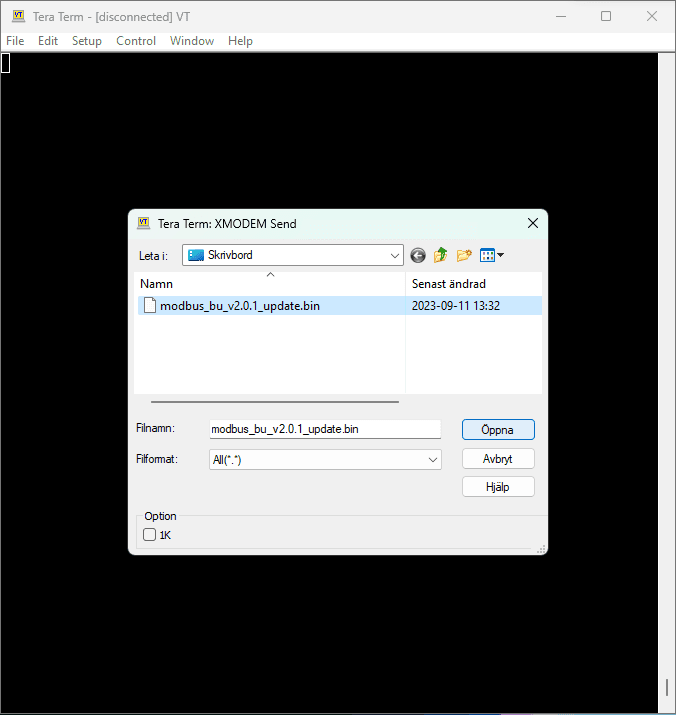
Select the firmware .bin file and click Open.
3. Wait for the transfer to complete
A progress window appears. The status LED blinks light blue during the transfer.
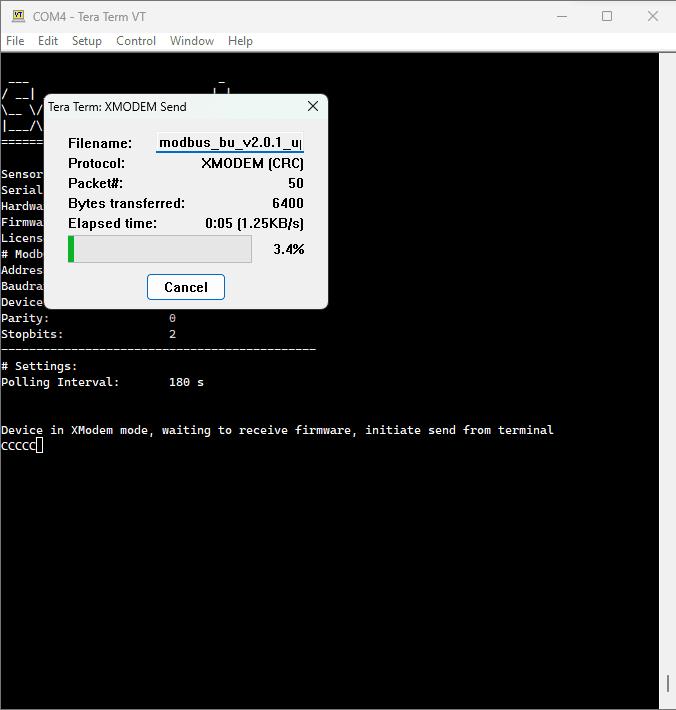
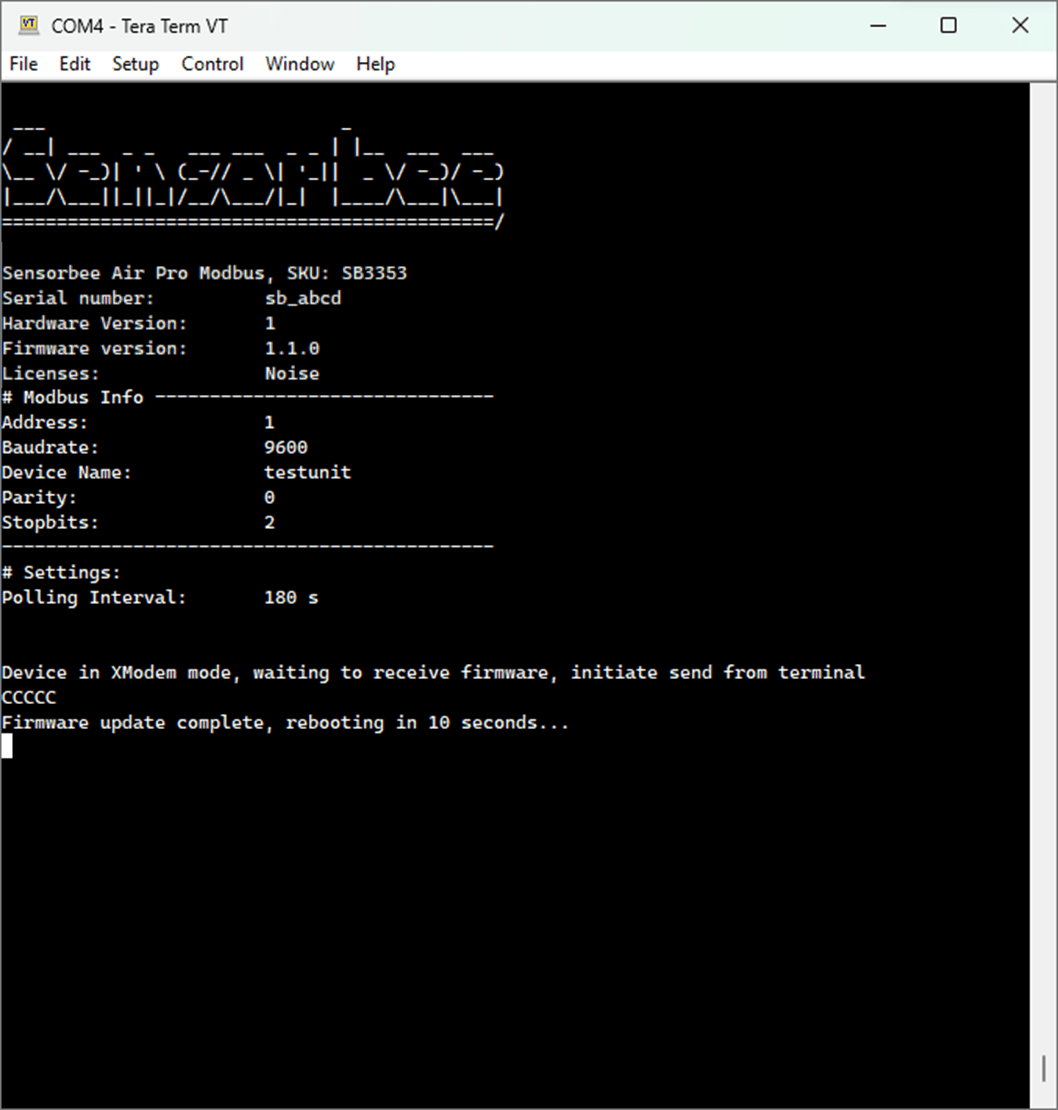
After the transfer finishes, the unit reboots automatically after about 10 seconds. The first boot on new firmware may take longer than a normal boot while housekeeping tasks run.
Press Esc to refresh the main menu — the new firmware version should now be visible.
If the update fails
- ·If you need to cancel mid-way before the transfer starts, press any key. The unit shows a failure message after about 10 seconds and returns to the main menu.
- ·If the transfer fails with an error, try the procedure again from step 1.
- ·If repeated attempts fail, contact support@sensorbee.com.