Alert Rules
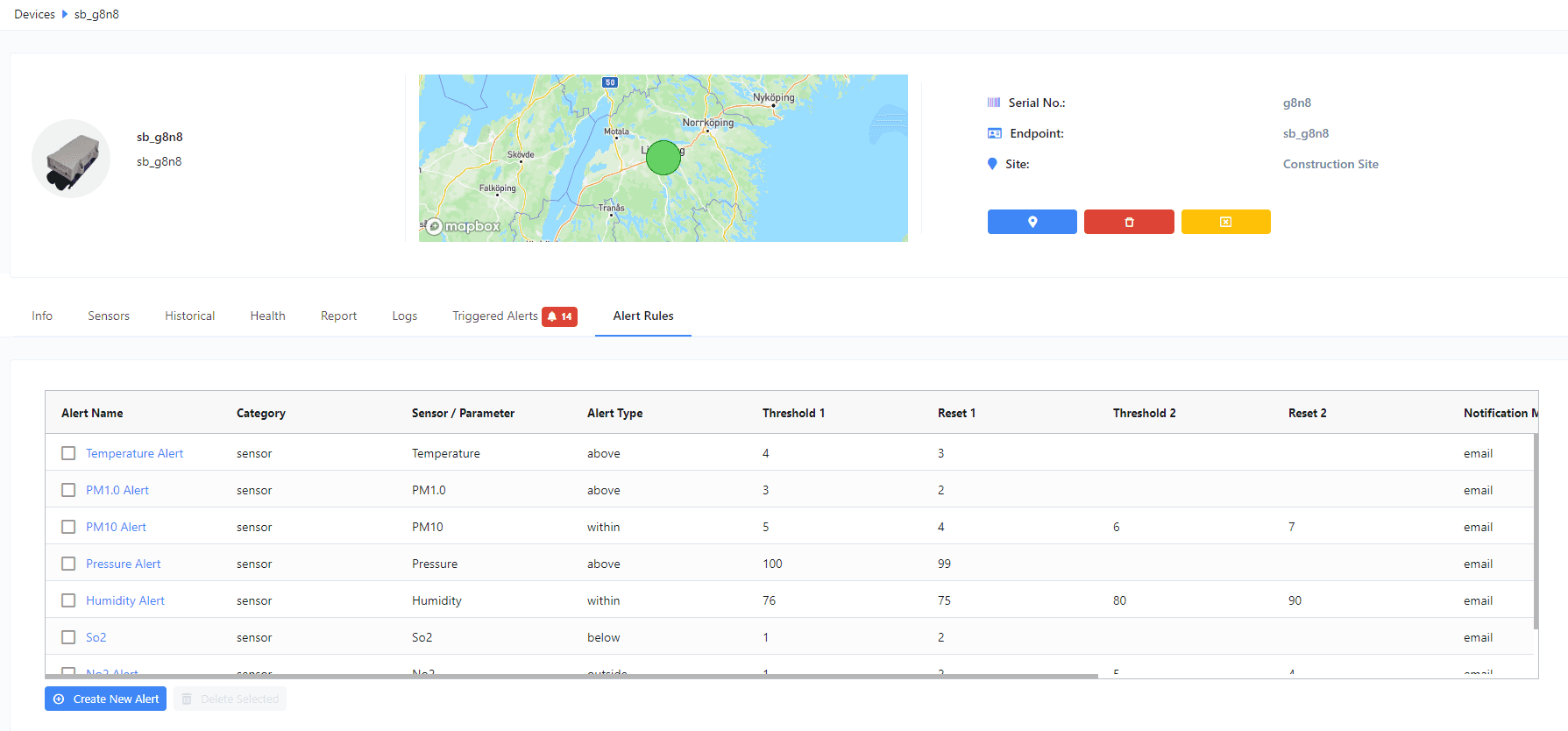
The Alert Rules tab is where you define the conditions that generate alerts for the device. Use it to get notified when a reading crosses a threshold, leaves a range, or returns to a safe value.
For the firing history and resolution of alerts that have already triggered, see Triggered Alerts.
Create an alert
1. Open the new-alert modal
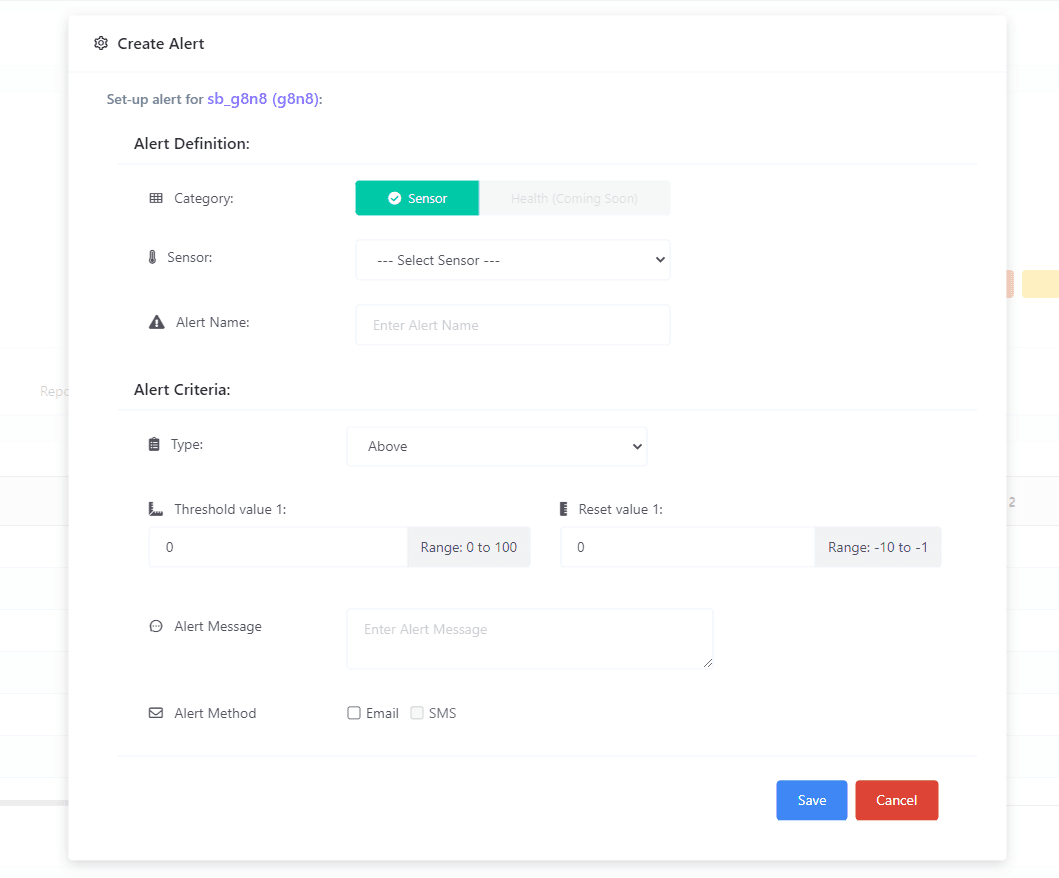
Click Create New Alert.
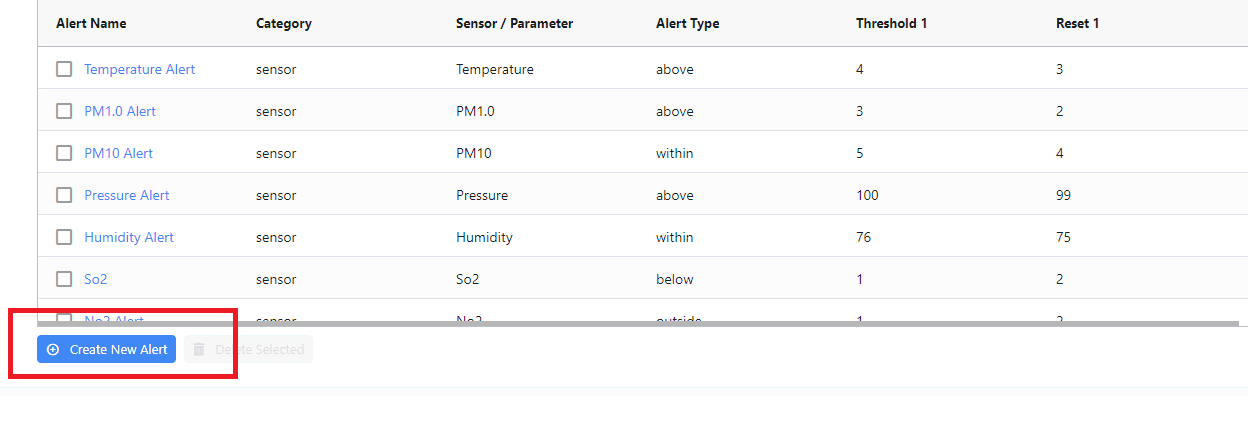
The alert-creation modal opens.
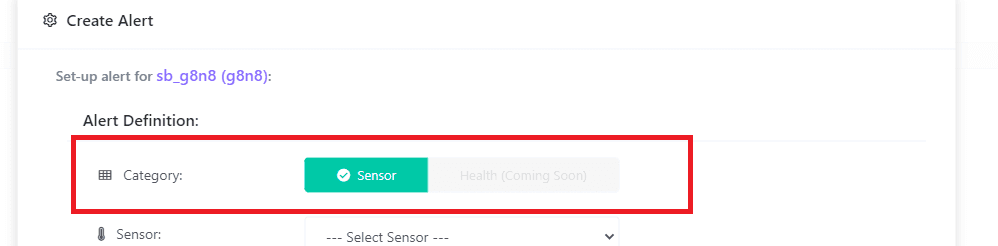
2. Pick a category
- ·Sensor Alert — conditions based on sensor readings.
- ·Health Alert — conditions based on device health (battery, signal strength). Not yet available; planned for a future release.
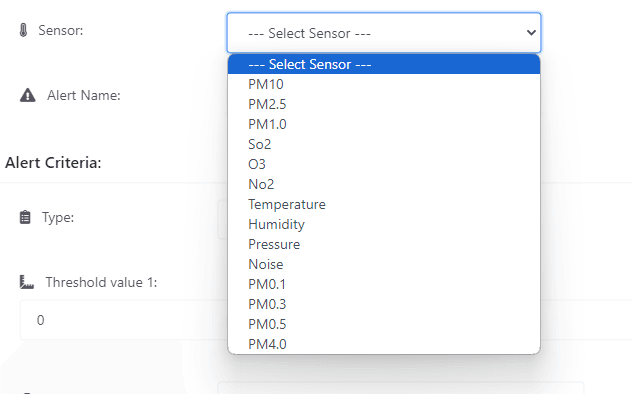
3. Pick a sensor
Pick the sensor whose readings the alert will watch. Only sensors fitted to the device are listed. Supported sensors: PM, SO₂, O₃, NO₂, temperature, humidity, pressure, noise.
4. Name the alert
Give the alert a memorable name — it's what you'll see when it triggers.

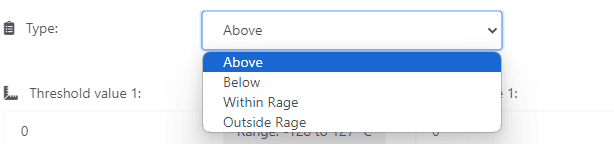
5. Pick the alert type
| Type | Triggers when |
|---|---|
| Above | Reading goes above the threshold (e.g. above 25 °C). |
| Below | Reading goes below the threshold (e.g. below 25 °C). |
| Within Range | Reading is between threshold 1 and threshold 2 (e.g. 25–30 °C). |
| Outside Range | Reading is outside threshold 1 and threshold 2. |
6. Set the thresholds and reset values
For Above and Below, you provide one threshold and one reset value.
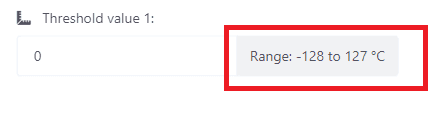
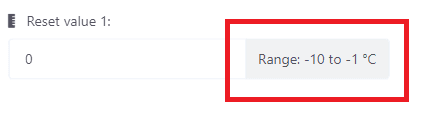
For Within Range and Outside Range, you provide two of each.


Understanding the reset value
The reset value is the reading the sensor must return to before a new alert can fire. Without it, a reading hovering above the threshold would generate an alert on every report cycle.
Example: an alert is configured Above 25 °C with a reset value of 23 °C.
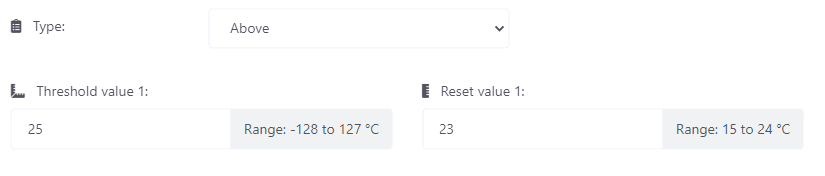
- ·Temperature reaches 26 °C → alert fires.
- ·Next interval, temperature is still at 27 °C → no new alert.
- ·Temperature eventually drops back to 23 °C → the alert is "armed" again.
- ·Temperature rises back above 25 °C → alert fires again.
7. Alert message
Free-text message that's included in the email or SMS notification.

8. Notification method
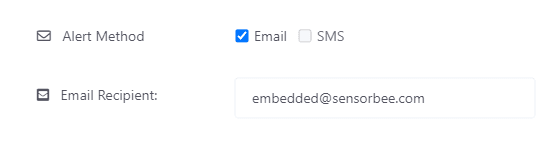
- ·Email — uses the address on your account by default; override if needed.
- ·SMS — uses the number on your account by default. Not yet available; planned for a future release.
9. Submit
Click Submit — the rule is active immediately.
Vibration alerts — BS 7385 peak-frequency limits
For the triaxial vibration sensor, alerts follow BS 7385 peak-frequency limits rather than a single flat peak particle velocity (PPV) threshold. You configure separate limits for different building types, and Sensorbee Cloud applies the frequency-dependent guide values the standard defines — lower thresholds at the low frequencies where structures are most vulnerable, higher ones as frequency rises. This matches the damage criteria an assessor would apply, without manual threshold arithmetic.
For the background on PPV measurement and BS 7385-2 damage thresholds, see the construction vibration monitoring guide.
Creating an alert from the Sensors tab
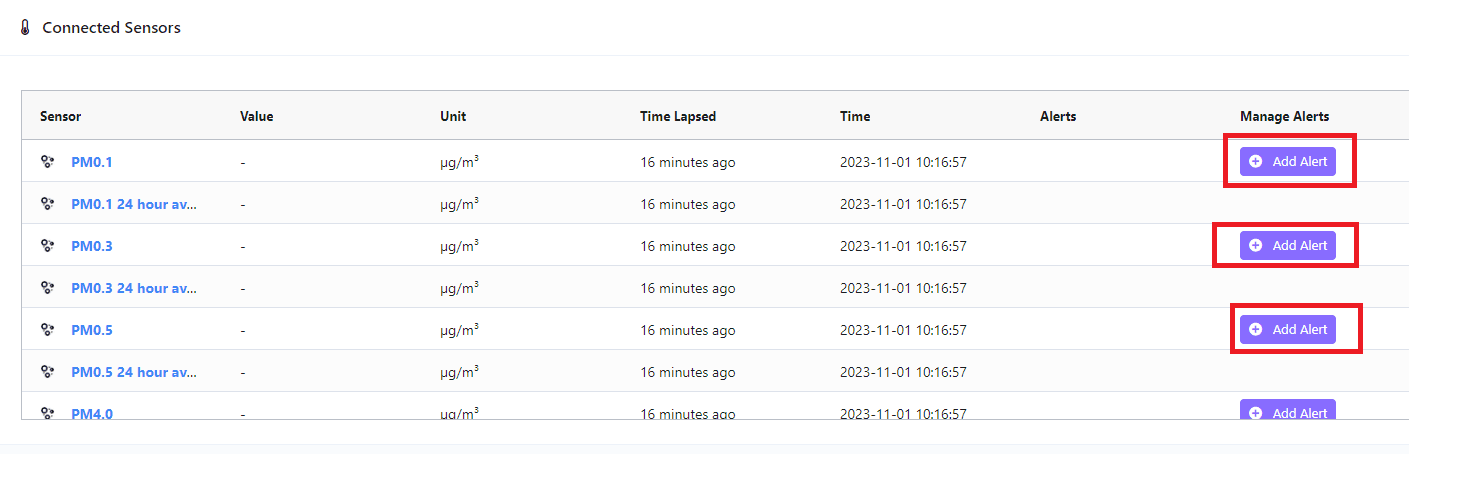
On the Sensors tab, each sensor has an Add alert action under its Manage Alerts column. This opens the same modal pre-filled for that sensor.
Editing an alert
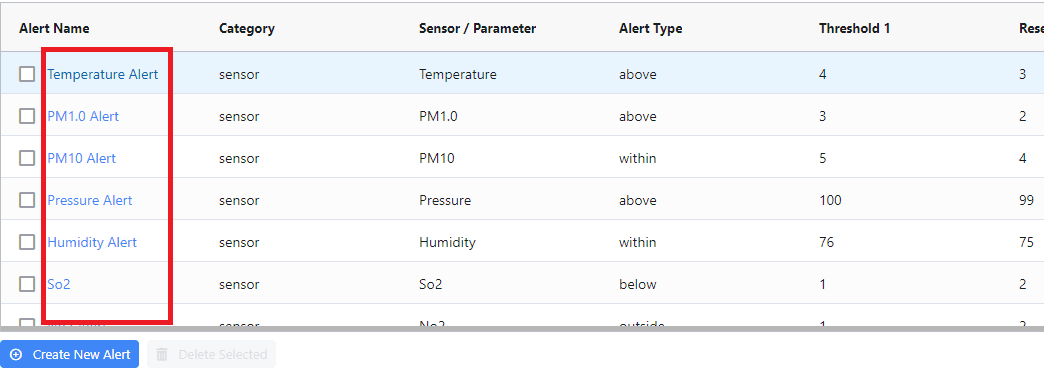
Click the alert name in the grid — the modal reopens pre-filled. Make your edits and submit.
Deleting an alert
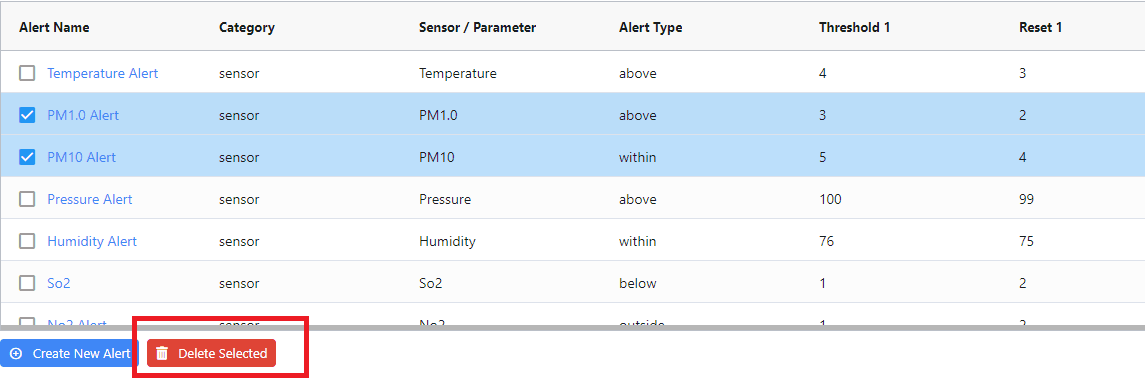
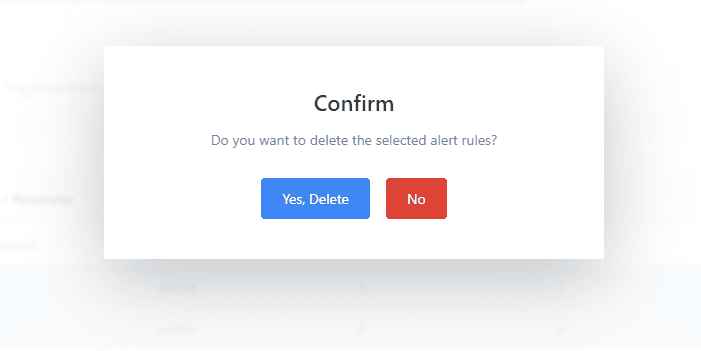
Tick one or more rules and click Delete Selected.