Pairing with Sensorbee's LwM2M server
This page walks through bootstrapping a unit against the Sensorbee-hosted LwM2M server — the path you want if you're using the Sensorbee Cloud portal.
For the alternative path (bootstrapping to your own LwM2M server), see External.
1. Scan the QR code
Scan the QR code on the sticker attached to the unit. Your device opens a setup URL of the form https://console.sensorbee.com/setup/<peering-code>.
If you're not already logged into the Sensorbee Cloud, you'll be prompted:
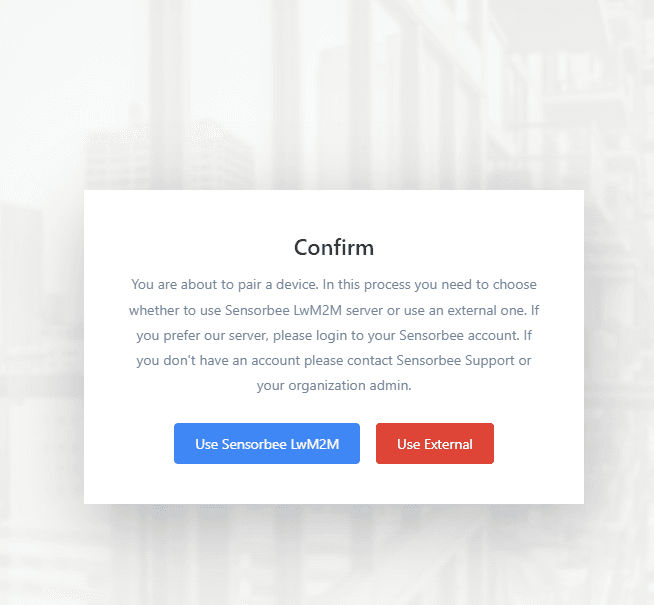
2. Select "Use Sensorbee LwM2M"
Pick Use Sensorbee LwM2M. You'll be sent to the login page — log in so the unit is registered to your account.
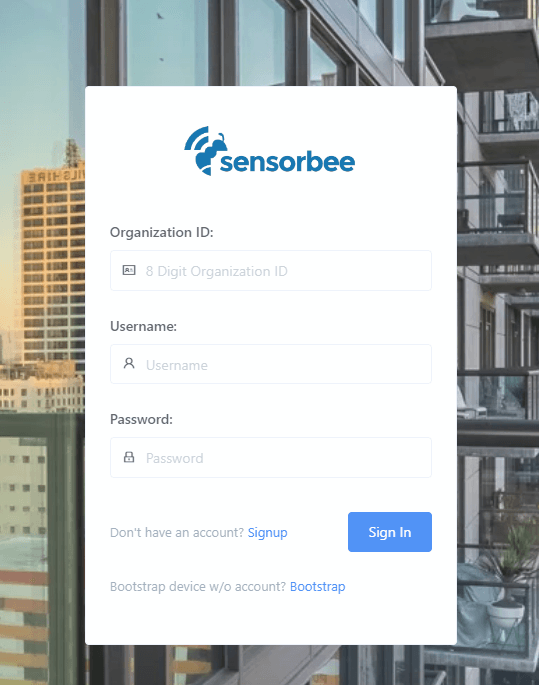
If you were already logged in when you scanned the QR, steps 1 and 2 are skipped.
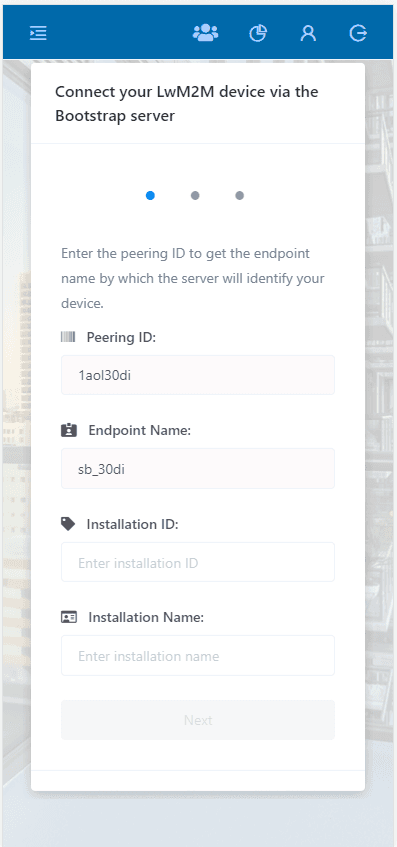
3. Enter installation details
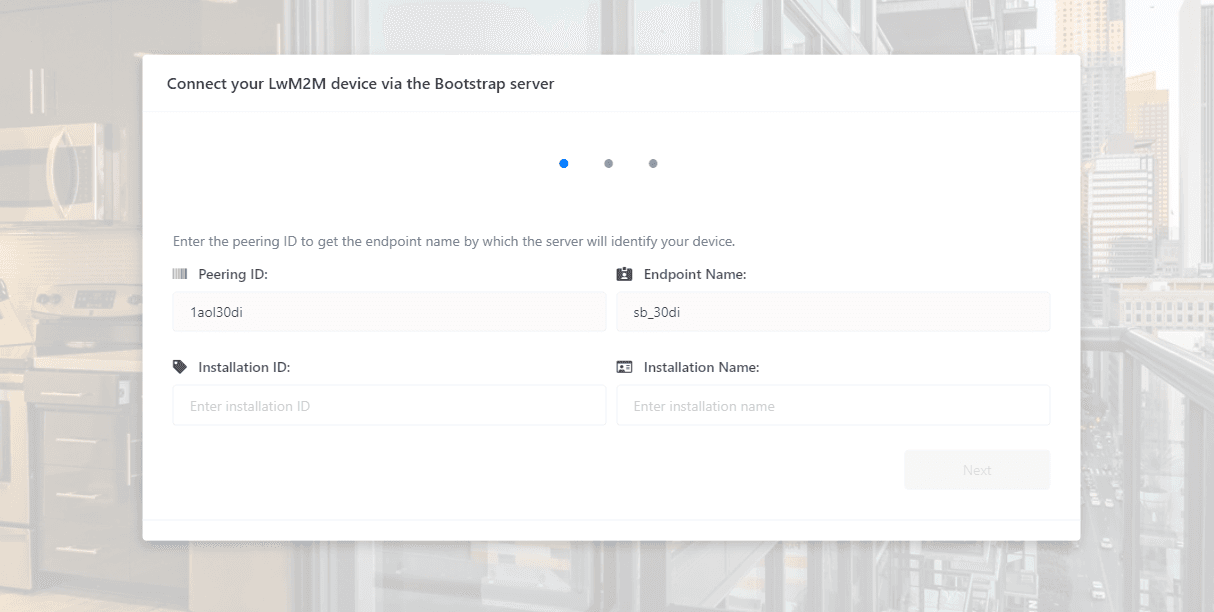
The setup page is pre-filled with the Peering ID and endpoint name from the QR code. You enter the Installation ID and the device name you want to assign.
4. Review LwM2M server details
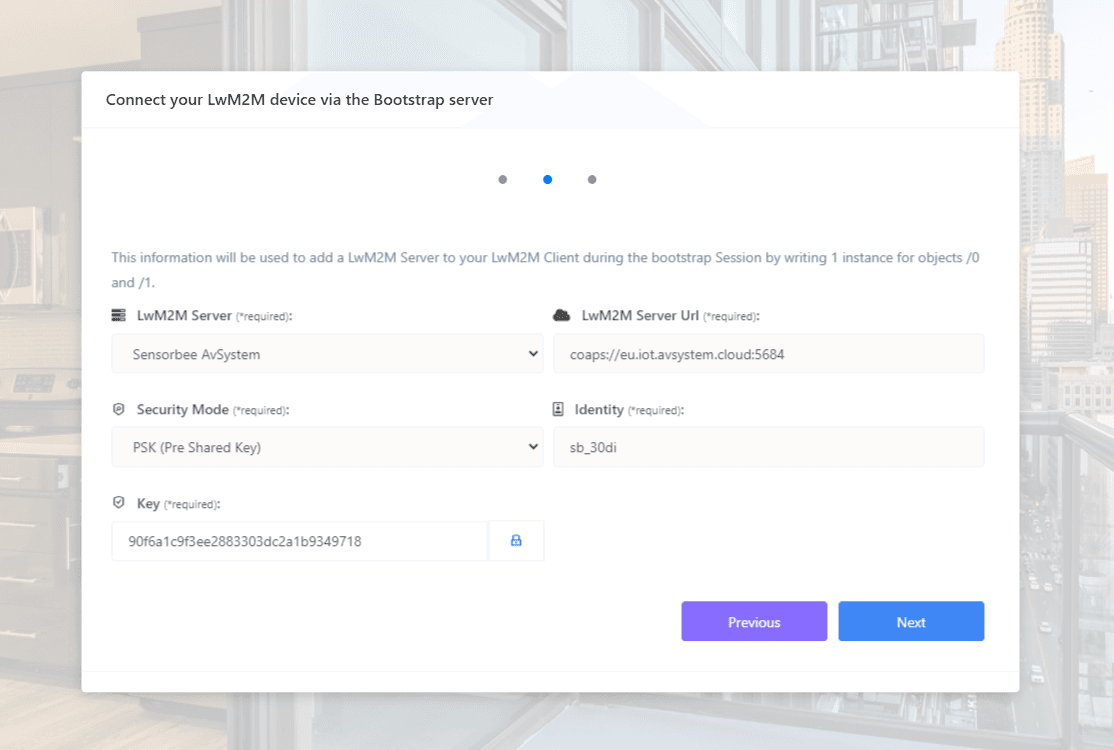
The LwM2M server URL, security mode, and pre-shared key are all pre-filled — for the Sensorbee LwM2M path, the server is set to Sensorbee AvSystem. You generally don't need to change anything here unless you want to customise the pre-shared key.
5. Review the summary
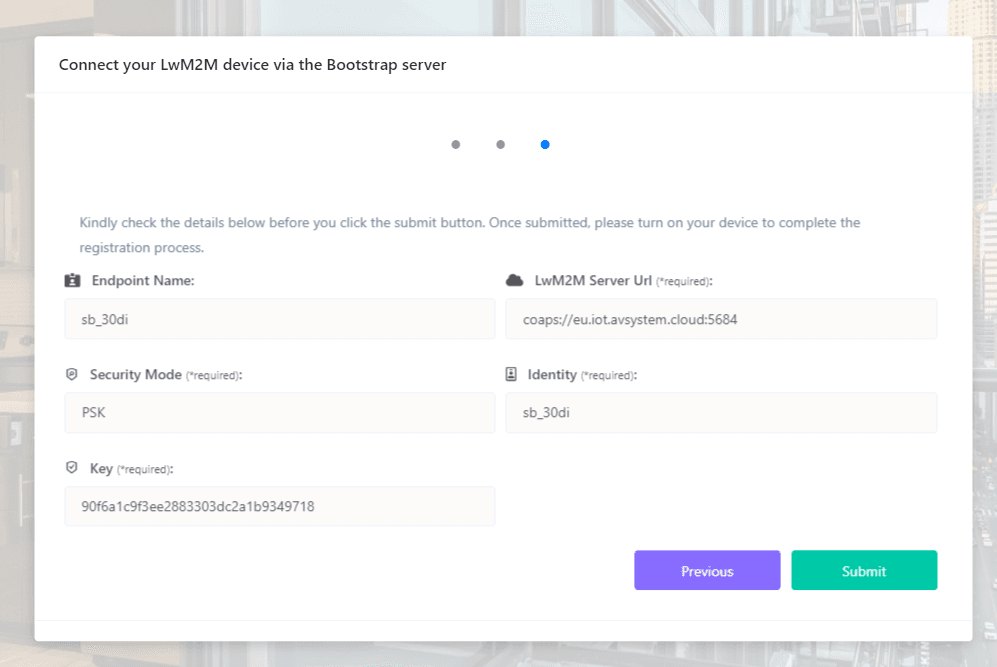
Review the full summary before submitting.
6. Submit
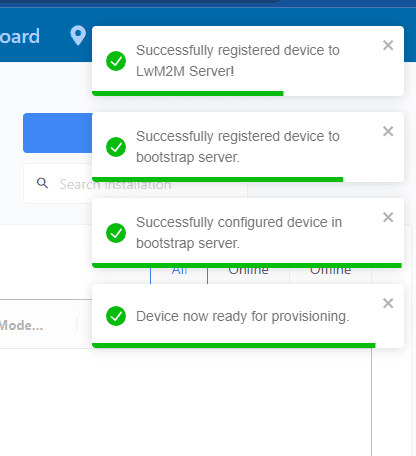
After clicking Submit, the bootstrap process starts. On success you'll see confirmation prompts:
7. Power the unit
Turn the unit on. Once it boots and registers, it will start reporting sensor values into your cloud dashboard.
Pairing without a QR code
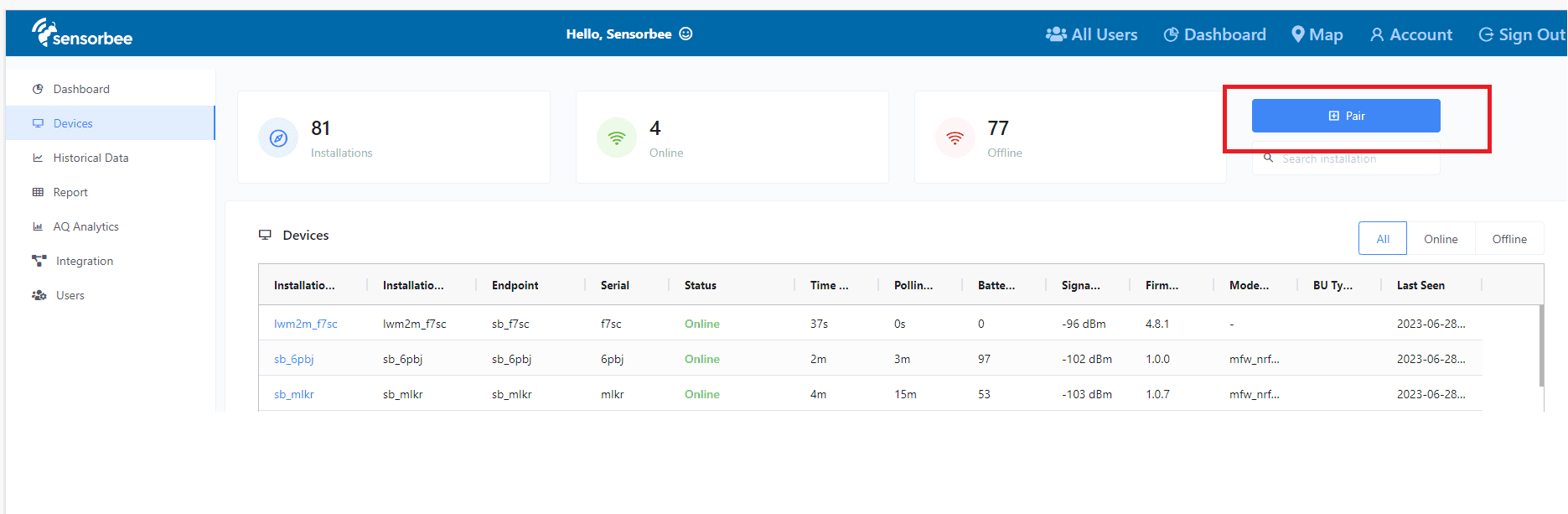
You can also add a new device from the Sensorbee Cloud dashboard without scanning. Go to the Devices page and click Pair in the top-right.