Pairing with an external LwM2M server
This page walks through bootstrapping a unit against a customer-owned LwM2M server — choose this path if you're running your own LwM2M stack (ThingsBoard, AvSystem, or another supported backend) and do not need the Sensorbee Cloud portal.
For the Sensorbee-hosted path, see Sensorbee.
Units bootstrapped externally cannot be managed from the Sensorbee Cloud portal. If you change your mind later, you can re-bootstrap the unit via the Sensorbee path.
1. Scan the QR code
Scan the QR code on the sticker attached to the unit. Your device opens a setup URL of the form https://console.sensorbee.com/setup/<peering-code>.
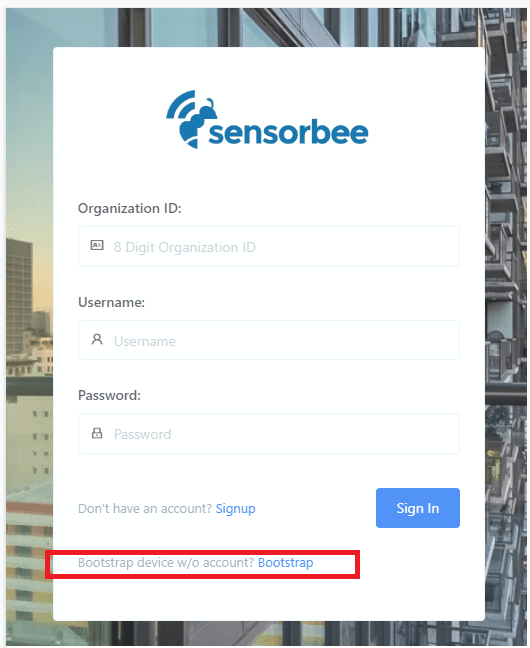
If you're not logged in, you'll be prompted:
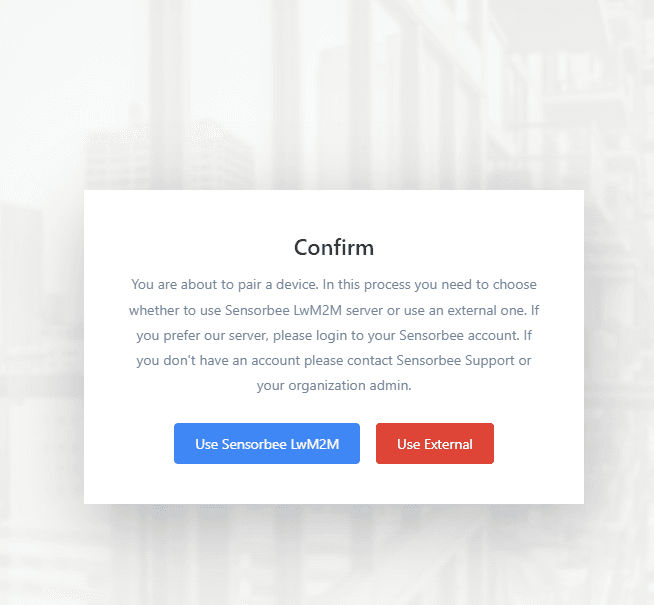
2. Select "Use External"
Pick Use External. No authentication is required for this path. You'll be taken to the external-bootstrap form with all fields pre-filled from the QR.
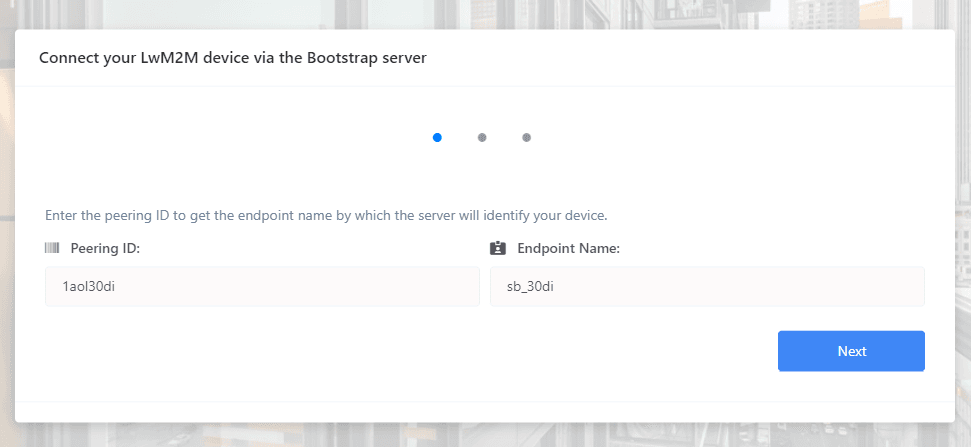
3. Review — and optionally edit — the LwM2M server details
The LwM2M server URL, security mode, and pre-shared key are shown. Because you're using an external server, you can edit any of these values.
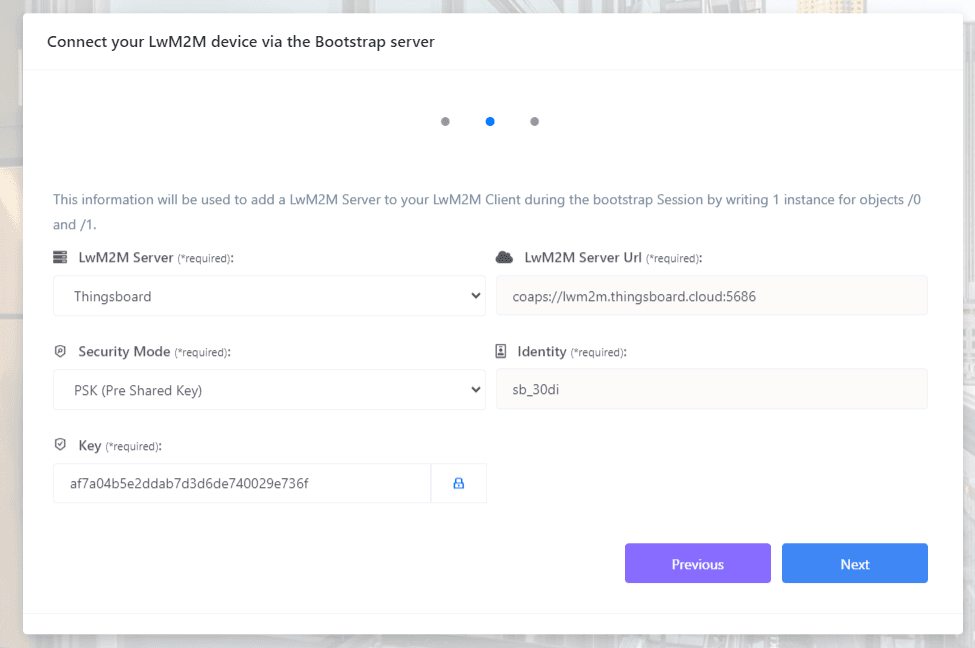
A dropdown offers preset options for common servers — including ThingsBoard and AvSystem — which pre-fill the URL. Selecting Others lets you enter the URL yourself.
4. Review the summary
Review the full summary before submitting.
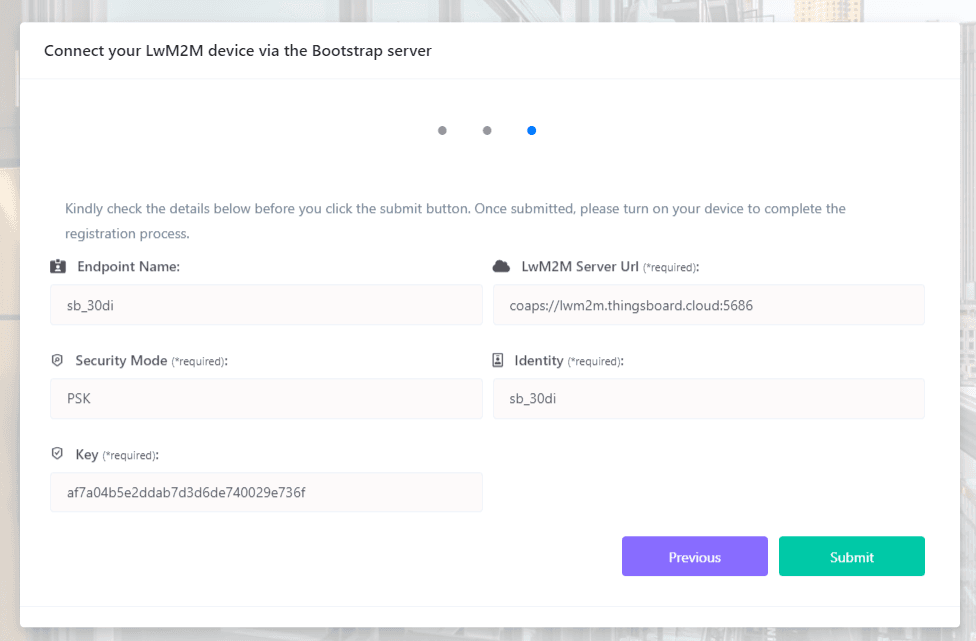
5. Submit
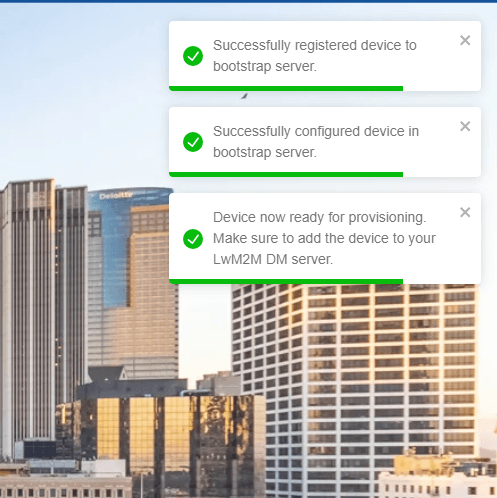
After clicking Submit, the unit is registered with our bootstrap server. It remains there for one hour, or until you power the unit on — whichever is sooner.
Pairing without a QR code
From the Sensorbee Cloud login page, click the Bootstrap link. The external-bootstrap modal opens — enter the details manually.